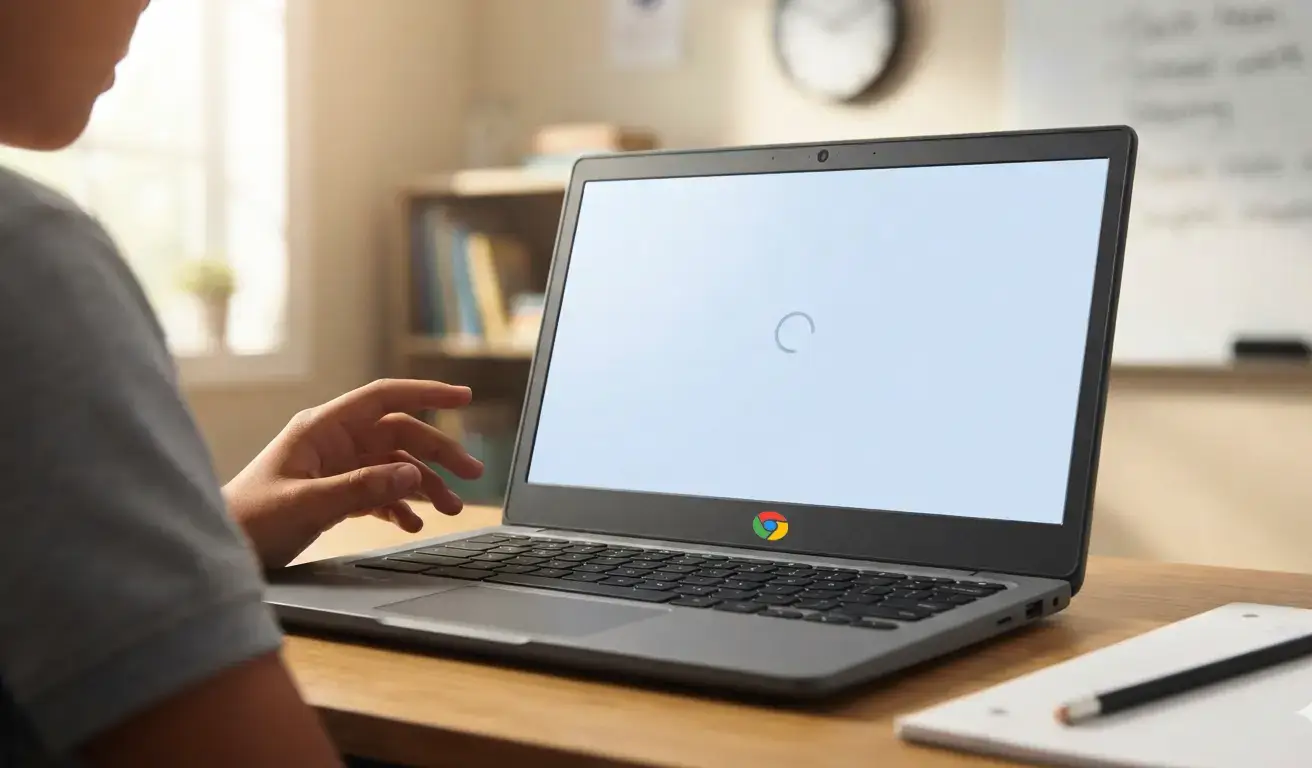




Chromebook RAM management isn’t just about memory—it’s about maximizing performance, extending the device lifespan, and keeping classrooms running without any tech hiccups. Chrome OS is designed to be lightweight and generally efficient, RAM can quickly become a bottleneck when students run multiple tabs, Android or Linux apps, and extensions at the same time.
Effective RAM management keeps lessons flowing smoothly, prevents frustrating slowdowns, and ensures schools get the most out of their Chromebook investments.
When to Focus on RAM Management
At Device Setup
- Before deployment, admins should assess the base RAM available—often via chrome://system/ to check installed memory under Memory_spd_info.
During Everyday Use
- When performance lags, such as sluggish tab switching, delayed loading, or frequent crashes. Use the built-in Task Manager (Search + Esc) to identify RAM-heavy tabs, extensions, or processes.
Upon Adding New Apps or Users
- Installing Android apps or Linux apps can significantly increase RAM demand—especially on low-RAM devices.
During Regular Maintenance Cycles
- Periodic checks and clean-ups—like removing unused extensions, disabling Android if not needed, or rebooting devices—help maintain optimal performance.
How to Manage Chromebook RAM in Schools
1. Understand and Monitor Usage
-
- Open the Chrome OS Task Manager with Search + Esc. Sort by Memory footprint to spot RAM hogs—whether they’re tabs, apps, or extensions.
- Consider using a system monitor app like Cog to track real-time RAM and CPU usage.
2. Reduce Chrome Load
-
- Limit open tabs: Encourage students to close unused tabs; each tab consumes memory.
- Disable or remove unnecessary extensions: Every extra extension—even inactive ones—uses RAM. Audit and remove what’s unnecessary.
- Disable Android apps if not needed: Android subsystem is a heavy RAM consumer; turning off Play Store can drastically reduce usage.
3. Leverage Built-in Features
-
- Enable Memory Saver mode in Chrome OS settings to automatically unload inactive tabs and free up RAM (when available).
- Disable prediction features and preload settings: Turn off “preload pages,” URL predictions, and background app running to lower memory overhead.
- Device-Level Management via Admin Console
4. Device-Level Management via Admin Console
-
- For managed devices, the Google Admin console allows setting policies that restrict resource-draining features or apps, optimize updates, and enforce performance settings across all school Chromebooks.
5. Regular Maintenance Practices
-
- Reboot periodically to clear cached memory and reset background processes.
- Powerwash (factory reset) problematic devices showing persistent memory bloat—or inconsistencies—after backup.
- Monitor long-term: If devices consistently struggle, consider hardware upgrades or replacement planning.
-
For guidance on how thermal management extends Chromebook lifespan, check out: How Thermal Management Extends Chromebook Lifespan.
-
To learn about school-supported Chromebook repair programs, visit: Chromebook Repair Program.
Equip your school’s technology team with the tools and strategies for smarter RAM management—and unlock smoother, more reliable experiences for students. Ready to optimize your Chromebooks and support longevity?
Discover how thermal management and classroom repair initiatives can help at the links above.