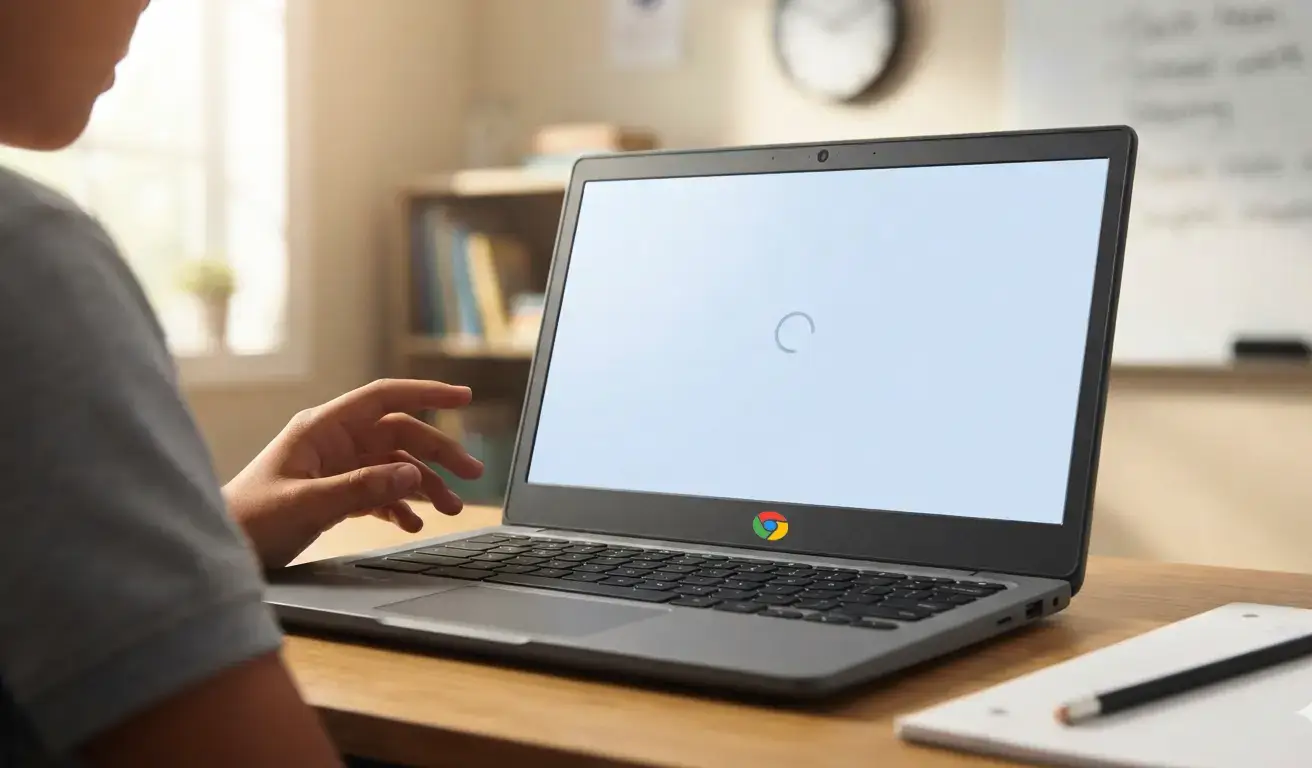



Ensuring that your Chromebook’s touchpad and keyboard firmware is up to date and optimized can significantly enhance device performance, user satisfaction, and overall lifespan.
For schools where Chromebooks are deployed by the hundreds or thousands, smart management of firmware not only reduces repair and replacement costs but also keeps students learning without interruption.
Let us explore the fundamentals of touchpad and keyboard firmware, best practices for updating and maintaining firmware, and actionable tips for IT administrators, educators, and even students to maximize the return on your Chromebook investment.
Understanding Chromebook Firmware: The Basics
Firmware is the low-level software embedded in hardware components and in this case, the touchpad and keyboard, that governs how those parts communicate with the operating system. Unlike apps or Chrome OS updates, firmware updates often address deep hardware control issues, such as:
-
Touch sensitivity and palm rejection tuning
-
Key debounce timing (how quickly a keystroke is registered)
-
Power management to reduce battery drain when idle
-
Diagnostic controls to identify and report hardware faults
Outdated firmware can result in sluggish cursor response, accidental palm clicks, ghosting (unregistered keystrokes), or uneven keyboard backlighting.
At scale in a school environment, such issues translate into more help-desk tickets, lost classroom time, and accelerated wear-and-tear on devices.
Why Focus on Touchpad & Keyboard Firmware?
-
Improved Student Experience
When the touchpad responds predictably and the keyboard registers each keystroke accurately, students can focus on learning rather than troubleshooting input lag or accidental clicks. -
Reduced Service Costs
Firmware fixes often resolve what would otherwise appear to be hardware failures. Updating firmware can eliminate the need for expensive component replacements or device swaps. -
Extended Hardware Lifespan
Proper power management and fault detection built into firmware updates can prevent overheating, battery overuse, and mechanical strain, keeping devices healthy for years. -
Security and Compliance
Some firmware updates address security vulnerabilities at the hardware level, protecting student data and ensuring compliance with privacy regulations.
Best Practices for Firmware Management in Schools
1. Centralize Firmware Deployment with Google Admin Console
The Google Admin Console allows IT teams to push Chrome OS updates, which often bundle essential firmware fixes, across your entire fleet.
Set up an update schedule that:
-
Checks for updates weekly, during off-hours to minimize disruption.
-
Validates successful installation on a pilot group before full deployment.
-
Monitors rollout progress and automatically retries failed updates.
Document your policies so that all team members know when and how updates occur.
2. Prioritize Critical Updates
While it may be tempting to defer “non-critical” updates, certain firmware releases address serious touchpad or keyboard bugs. Have a process to evaluate release notes provided by Chromebook vendors, focusing on:
-
Reports of widespread input lag or multi-touch failures.
-
Security patches that affect built-in keyboards or USB-connected touchpads.
-
Power management improvements that can extend battery cycle life.
Classify updates as “critical,” “recommended,” or “optional,” and treat them accordingly.
3. Maintain a Pilot Group
Before rolling anything school-wide, assign a small group of devices (e.g., 10–20 Chromebooks) to receive and test firmware updates. Engage computer-savvy teachers or tech volunteers to:
-
Test for any new issues in everyday tasks (typing essays, taking notes, browsing exercise platforms).
-
Report anomalies, sticky keys, unresponsive taps, or crashing peripherals back to IT.
-
Confirm that battery life metrics are consistent or improved.
This targeted approach prevents mass disruptions and helps catch edge cases early.
4. Provide Student and Staff Guidance
Clear communication is key. Educate school staff and students on:
-
Not interrupting a device during firmware installation (e.g., closing the lid prematurely).
-
Reporting any new touchpad or keyboard behavior immediately.
-
Practical maintenance: cleaning touchpads with lint-free cloths and keeping keyboards free of debris.
Post quick-reference guides in classrooms, digital newsletters, or intranet portals to reinforce best practices.
Actionable Tips to Enhance Chromebooks’ Touchpad & Keyboard Lifespan
Beyond firmware management, regular upkeep and user habits play a crucial role in longevity.
Tip 1: Keep Devices Clean and Dry
-
Wipe touchpads gently with a microfiber cloth; avoid liquid sprays directly on the device.
-
Use compressed air to dislodge crumbs under keys; schedule quarterly “deep clean” sessions with custodial staff.
Tip 2: Encourage Proper Handling
-
Teach students to use two hands: one to support the Chromebook’s base and one to type or navigate.
-
Discourage placing heavy items on top of closed Chromebooks or bending the screen back beyond 135 degrees, which can strain connections to the keyboard and touchpad controller.
Tip 3: Use Protective Accessories
-
Invest in quality keyboard covers that filter out dust and prevent spills.
-
Consider thin screen protectors with touch-compatible surfaces—especially for convertible Chromebooks used in tablet mode.
Tip 4: Monitor Battery Health
-
Firmware that optimizes power usage can reduce short-term drain, but aging batteries still wear out.
-
Leverage Chrome OS’s built-in battery monitoring reports in your Admin Console, replacing batteries or entire units once cycle counts exceed manufacturer recommendations.
Tip 5: Leverage Diagnostic Tools
-
Administrators can run Chrome OS diagnostics remotely to check for hardware anomalies.
-
Periodic health checks (e.g., monthly) can flag touchpad drift or key response times that signal imminent failure.

Streamlining Repairs and Replacements
Even with the best firmware and maintenance regimens, hardware will eventually degrade. By tracking touchpad and keyboard performance data via your Admin Console analytics, you can forecast which units are nearing end-of-life.
Consider:
-
Bulk ordering replacement parts (keyboards, touchpad modules) to reduce per-unit costs.
-
Establishing rapid swap programs so teachers and students receive loaner devices with zero downtime.
-
Reusing components from decommissioned Chromebooks in low-risk environments (e.g., library checkout stations).
Join the Inspiroz Chromebook Repair Program
Ready to keep your Chromebooks running at peak performance?
Join the Inspiroz Chromebook Repair Program today! With expert firmware updates, speedy keyboard and touchpad fixes, and proactive maintenance guidance all backed by our dedicated support team, you’ll minimize downtime and maximize learning.
Sign up now and experience a seamless repair experience tailored for your schools.
Don’t let broken devices slow down your students’ enroll in the Inspiroz Chromebook Repair Program and empower uninterrupted education!